Your API docs in your own look, on your own domain
Documentation that looks like yours is trusted more than documentation that looks like a tool's default page. In APIGit a published document is a site of its own, and one settings screen decides how it looks and where it lives: the theme, your colour and fonts, your logo, the links around the content, and the domain readers type.
This post replaces our 2023 note on custom domains. A lot has been added since.
One settings screen
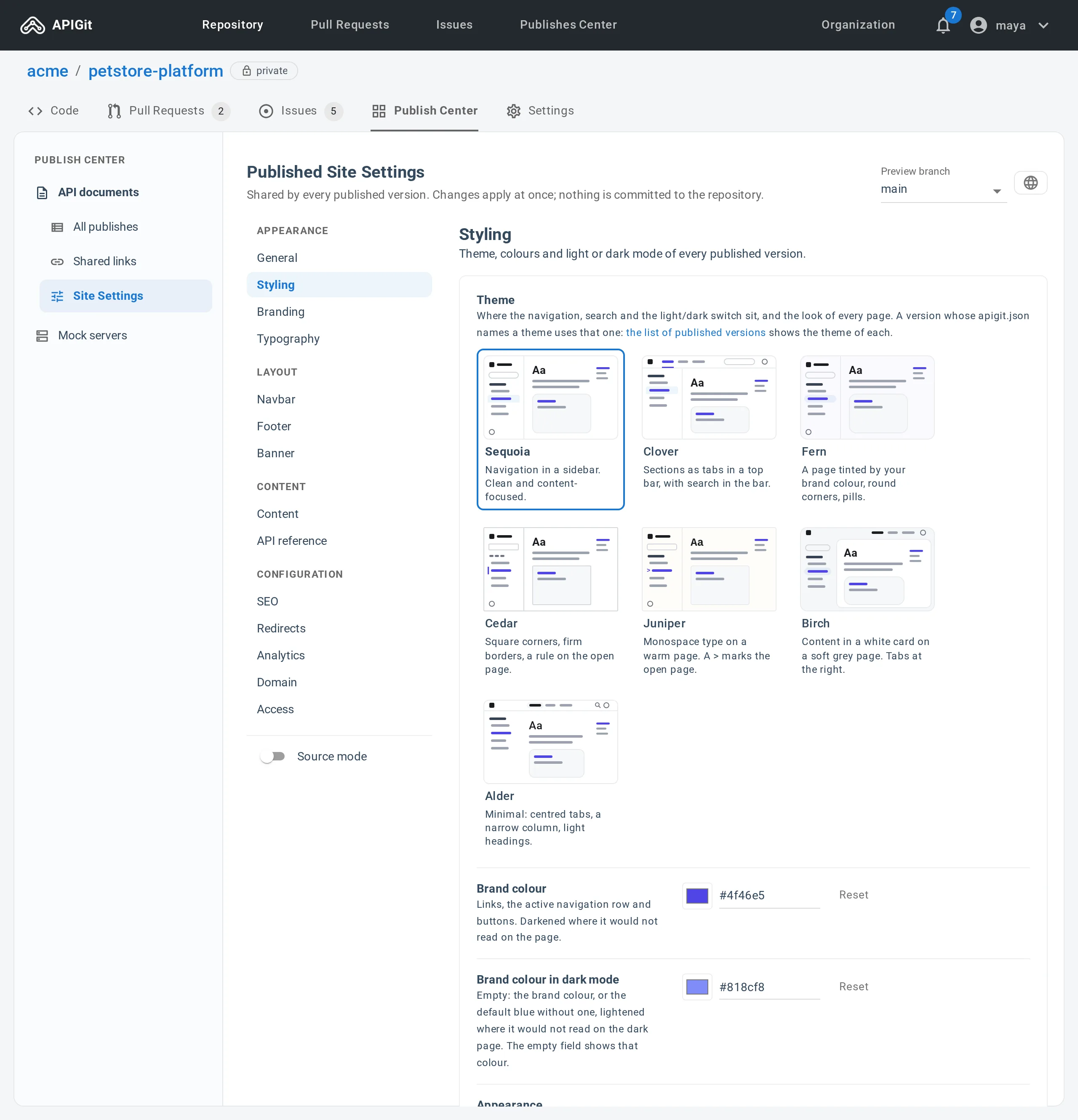
Open the repository, go to Publish Center and choose Site Settings under API documents. The settings apply to every published version of the repository, and each panel saves on its own.
| Group | What you set |
|---|---|
| Appearance | Document name and description, theme, brand colour, light or dark mode, logos, favicon, fonts |
| Layout | A button and up to six links in the header, a footer with links and social links, one announcement banner |
| Content | The Copy page menu, the last-updated date, the layout of the API reference |
| Configuration | Search engine listing, redirects, Google Analytics, custom domain, access for AI agents |
Everything on this screen is available on every plan, except the two items named under Plans below.
Seven themes
A theme decides how the site is arranged and how it looks: where the navigation, the search field and the light/dark switch sit, and the corners, borders and type of every page. Your content and navigation stay as they are, and you can switch at any time.
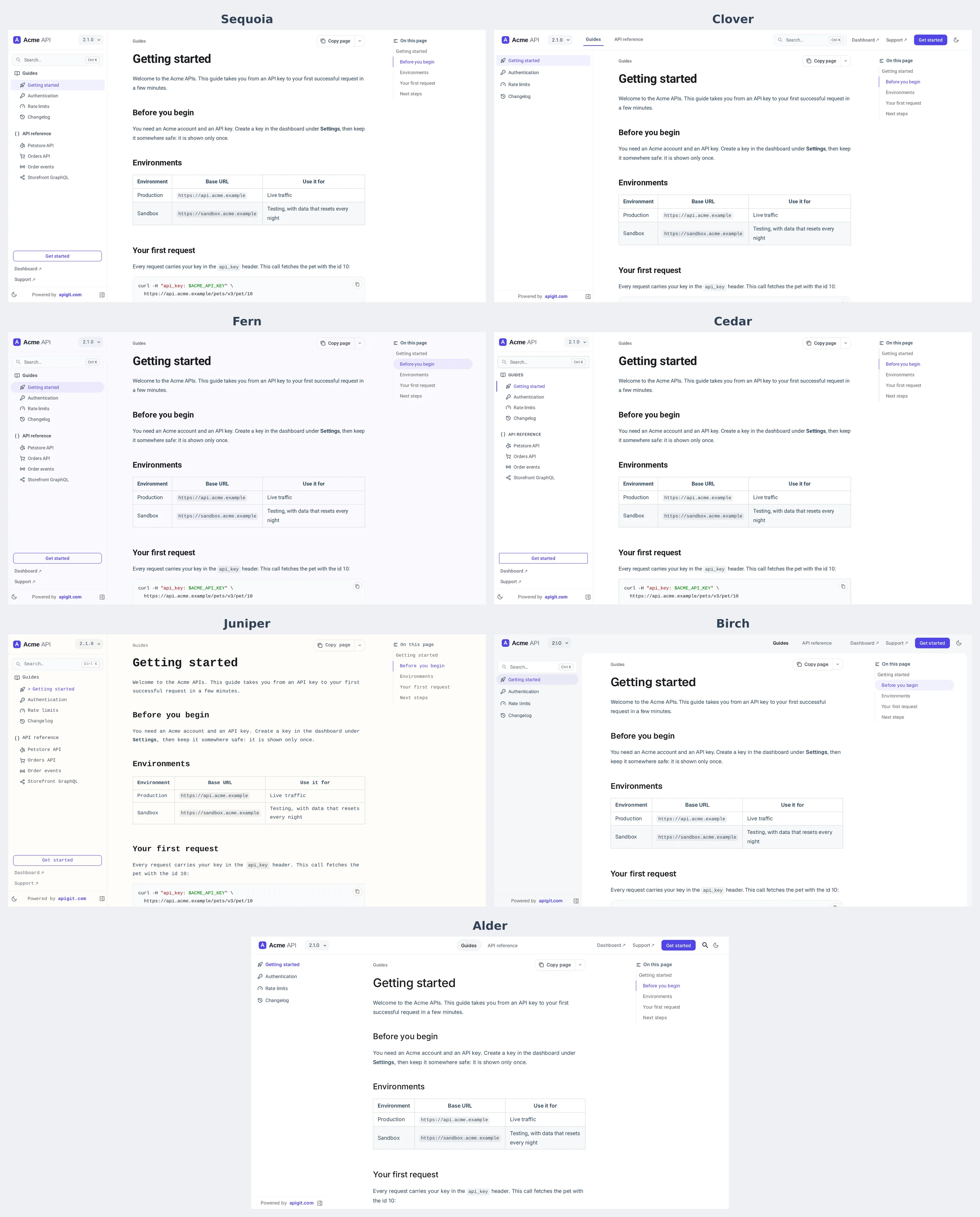
| Theme | In one line |
|---|---|
| Sequoia (default) | Everything in a sidebar, no top bar, white page with rounded corners |
| Clover | A top bar with the sections as tabs, search and the mode switch |
| Fern | Sequoia's arrangement on a page lightly tinted with your brand colour |
| Cedar | Square corners, firmer borders, group labels in small capitals |
| Juniper | Monospaced type everywhere on a warm page |
| Birch | A slim top bar, the content in a white card on a soft grey page, Geist type |
| Alder | Minimal: sections as pills, a narrower reading column, Inter type |
Each theme is a tile in the Styling panel with a small sketch of a page. Click one and save: it applies at once to every published version. A single version can name a different theme in its apigit.json, which is how you try a new look on a preview version first.
Your colour, fonts and logo
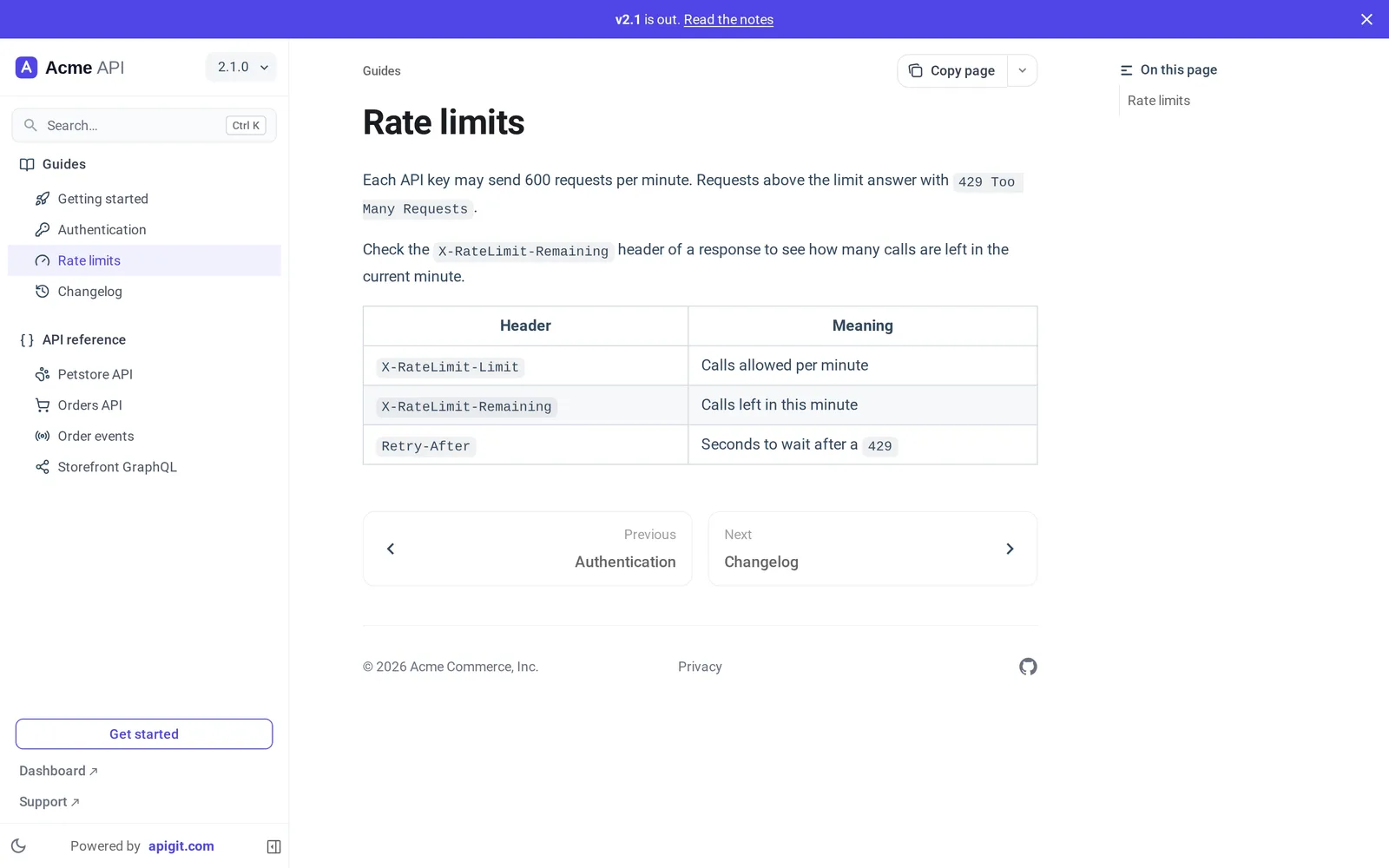
- Brand colour is used for links, the open item of the navigation and buttons. A colour that would be hard to read is darkened until it has enough contrast, and the screen tells you which colour is shown. A separate colour for dark mode is optional.
- Appearance follows the reader's system by default and gives readers a switch. You can fix it to light, or start in dark.
- Fonts: Roboto, Inter, Geist or the reader's system font, for headings and for body text.
- Logos: a square logo, a wide logo, a second logo for dark mode and a favicon, uploaded on the screen.
Your own domain
By default a published document is read under app.apigit.com. To serve it at docs.example.com:
- In Site Settings, open the Domain panel, switch the custom domain on and enter the name.
- At your DNS provider, add a
CNAMErecord for that name pointing tomydomain.apigit.com.
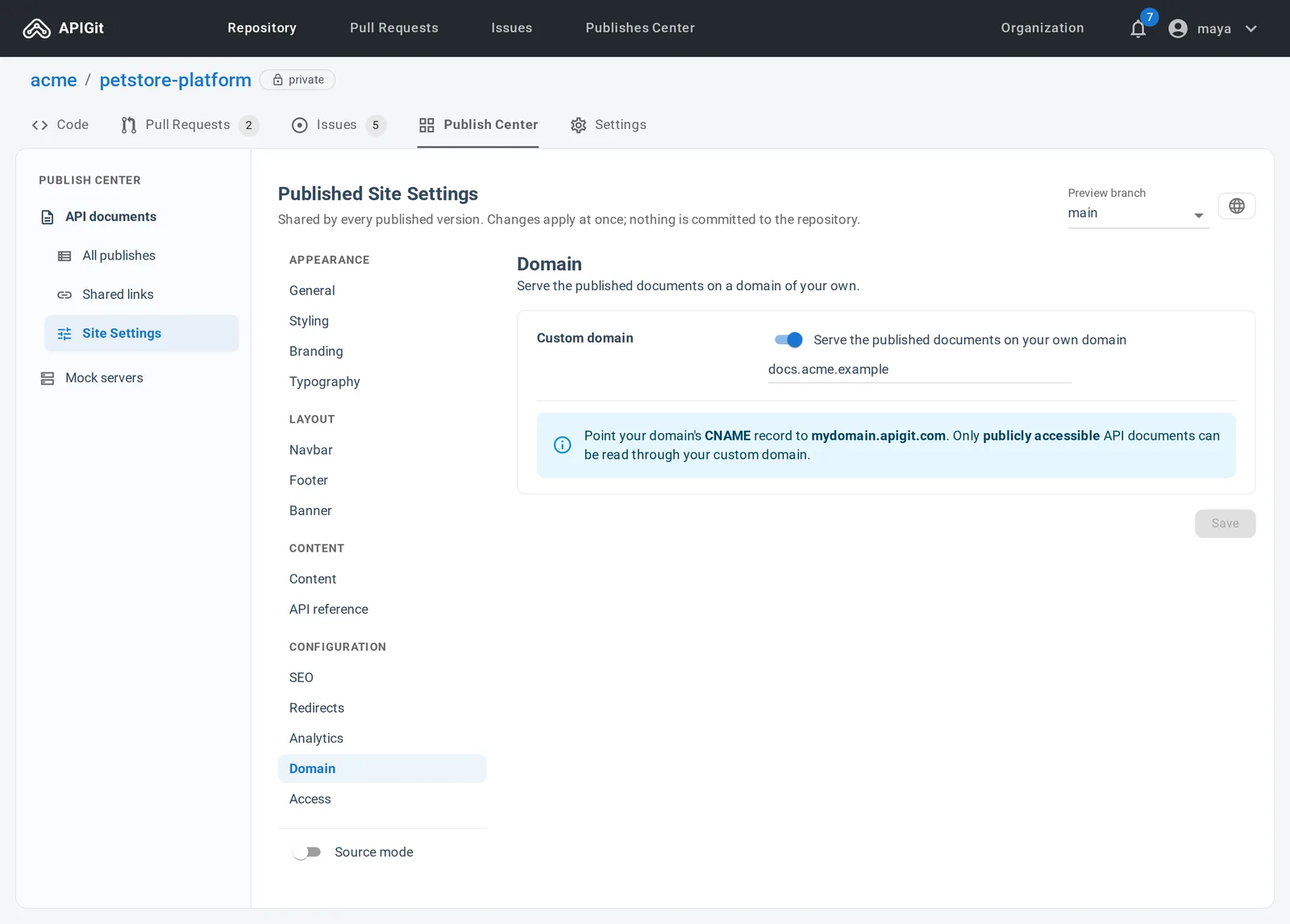
Versions published as Public To All are then readable on your domain. Versions with other access settings are not served there.
A document on its own domain is also prepared for search engines and link previews, which often do not run JavaScript: it has a sitemap.xml and a robots.txt, every page is sent with its own title, description and canonical address, and old addresses you list under Redirects answer with a permanent redirect. The details are in Custom Domain and SEO.
Plans
Themes, colours, fonts, logos, header, footer, banner and SEO settings are on every plan. Two things are not:
| Plan | |
|---|---|
| Custom domain | Team and Enterprise |
| Hiding the APIGit badge | Enterprise (eligible Team subscriptions from before the November 2026 packaging change keep it) |
See pricing for the current plans.
Where to start
Pick a theme and set your brand colour; that takes two minutes and changes the most. Then add the logo and the header links. The Themes and Site Settings pages document every option, and Navigation customization covers the menu of the site.